

For everyone who used Blume's web app before
Blume has a new web app. Everything you had is in it.
Sign in at the same address with the same email and password. Your teams, your students, your goals and every observation are there. This guide shows what has changed, where each page went, and how to do everything you did before.
Watch what has changed
A walk through the new web app, with every change named as it appears. It runs 3 minutes 3 seconds, narrated over quiet music, with captions and the words on the screen.
Read it instead
- Same account, same address. Sign in at www.blumemethod.app with the email and password you already have. Your students, goals and observations are all there. Google, Microsoft and Apple are new ways in.
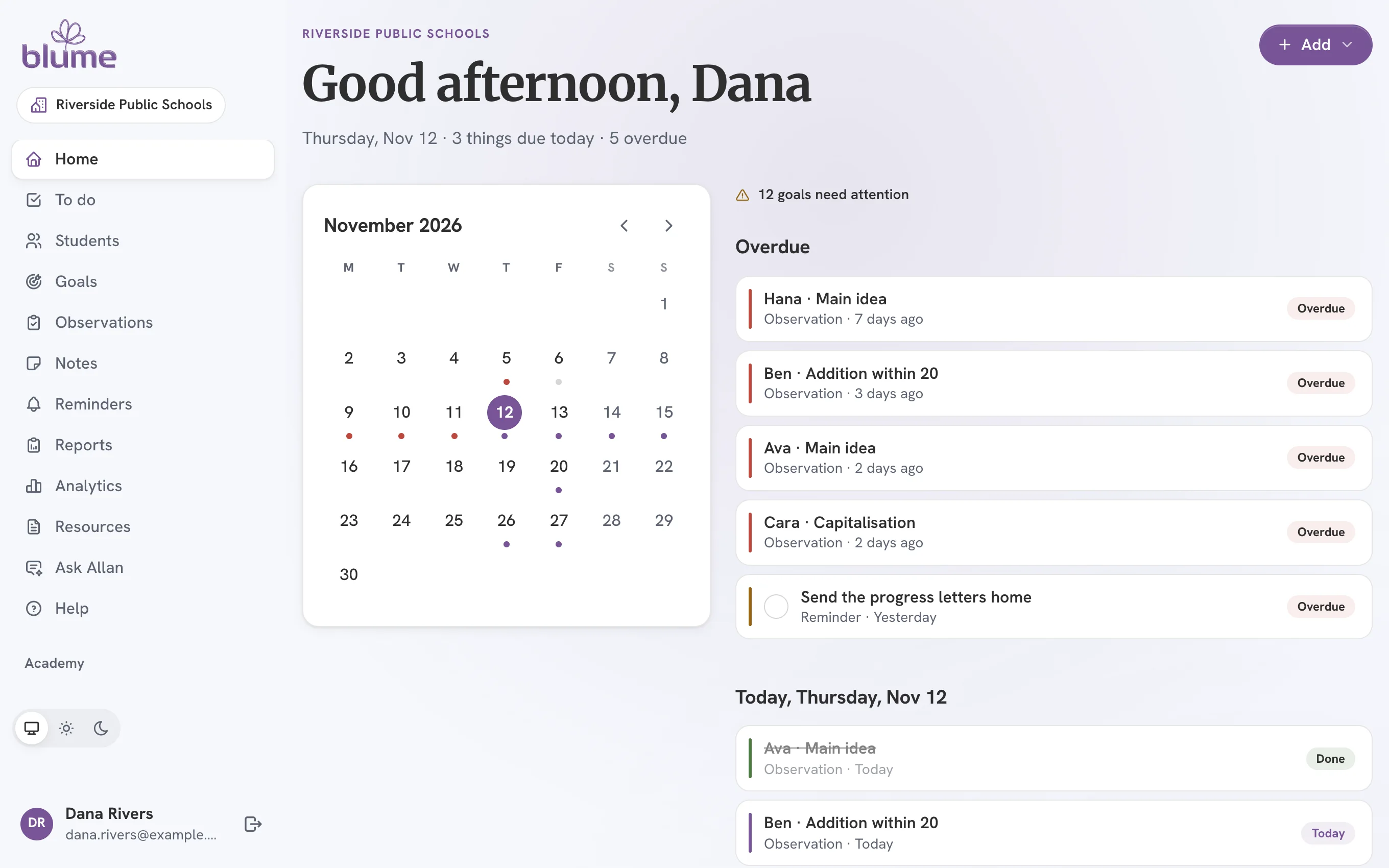
- One menu for everything. My Blume’s tiles are gone. Admin, Notebook and Academy are groups in one menu, on every page. Your profile and sign out are under your name.
- Home shows your day. Home has your month, what is overdue and what is due today. To do lists everything you have planned. Every observation sits on a real day.
- Add starts everything. A student, a goal, taking data, a progress report, a note or a reminder: each begins from Add, at the top right of Home.
- Your goals came with you. A goal written before says No observations planned. Choose Plan observations once, and it is on your calendar. Its baseline, targets and data are as you left them.
- Take data, one step at a time. Collect Data is now Take data. Choose the goal, record what you counted, then hold the button to save.
- Reports appear as you choose. Choose the student, the goal and the days under Reports. The report is on the page, and Download as PDF saves it.
- New: notes, reminders and Ask Allan. Write notes and set reminders of your own, private or shared with your team. Ask Allan answers questions about the Blume Method.
- For admins: Users is now Staff. Blume opens on Admin. Invite people from Staff, see your year under Your program, and export any list as a CSV.
- Hold to save, send or delete. Buttons that add, change or delete say Hold to. Press and hold until the button fills. There is no second dialog.
What has changed
Each change links to its how-to.
-
Same account, same students, same address
- Before
- You signed in at www.blumemethod.app with your email and password.
- Now
- You still do. Your teams, students, goals and observations are all there. Nothing was migrated, because your data never moved.
-
The Queue is now Home and To do
- Before
- Caseload opened on the Queue, and Calendar listed the observations coming up.
- Now
- Home shows your month, what is overdue and what is due today. To do lists everything you have planned. Every observation is planned on a real day that you can move.
-
One Add button starts everything
- Before
- The + menu offered Create a goal, and the rest started from other pages.
- Now
- Add, at the top right of Home, adds a student, begins a goal, takes data, plans data collection, creates a progress report, writes a note or sets a reminder.
-
Your goals came with you, and need their observations planned
- Before
- A goal had an observation frequency, and Blume worked out when the next observation was due.
- Now
- Every goal you wrote is on Goals. One written in the earlier web app says No observations planned until you choose Plan observations, which puts it on your calendar.
-
Hold a button to save, send or delete
- Before
- You clicked Save, then confirmed in a dialog.
- Now
- Buttons that add, change or delete say Hold to…: press and hold until the button fills. There is no second dialog to answer.
-
New: notes, reminders, Ask Allan and a personal workspace
- Before
- Reminders came only from a goal’s schedule, and every student belonged to a team.
- Now
- Write Notes and set Reminders of your own, private or shared with your team. Ask Allan answers questions about the Blume Method. A personal workspace is free and yours alone.
-
More ways to sign in
- Before
- Email and password only.
- Now
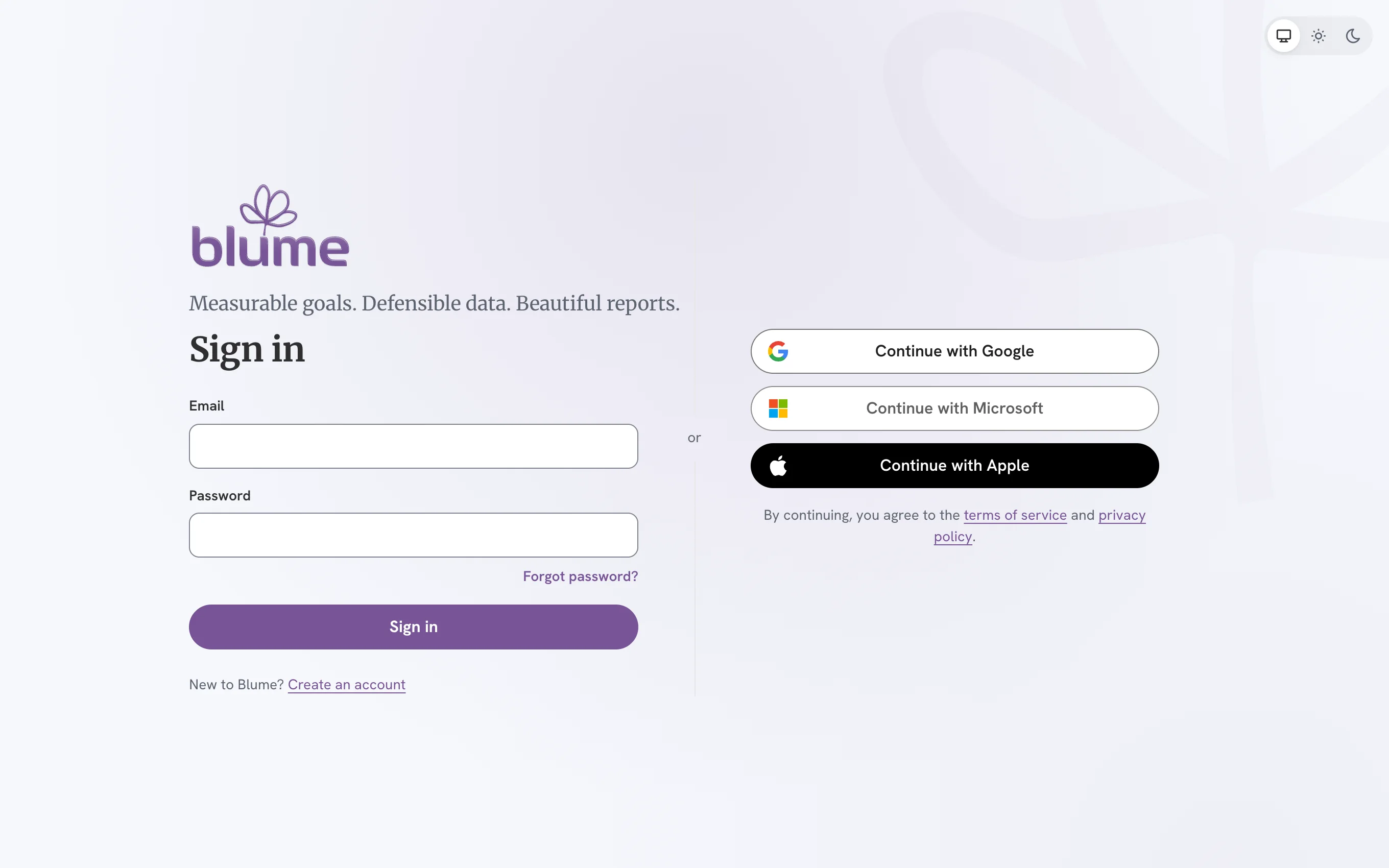
- Email and password, or Continue with Google, Continue with Microsoft or Continue with Apple.
-
For admins: Users is now Staff, and Admin opens first
- Before
- The Admin Portal had Home, Goals, Observations, Students, Users, Academy Insights and Settings.
- Now
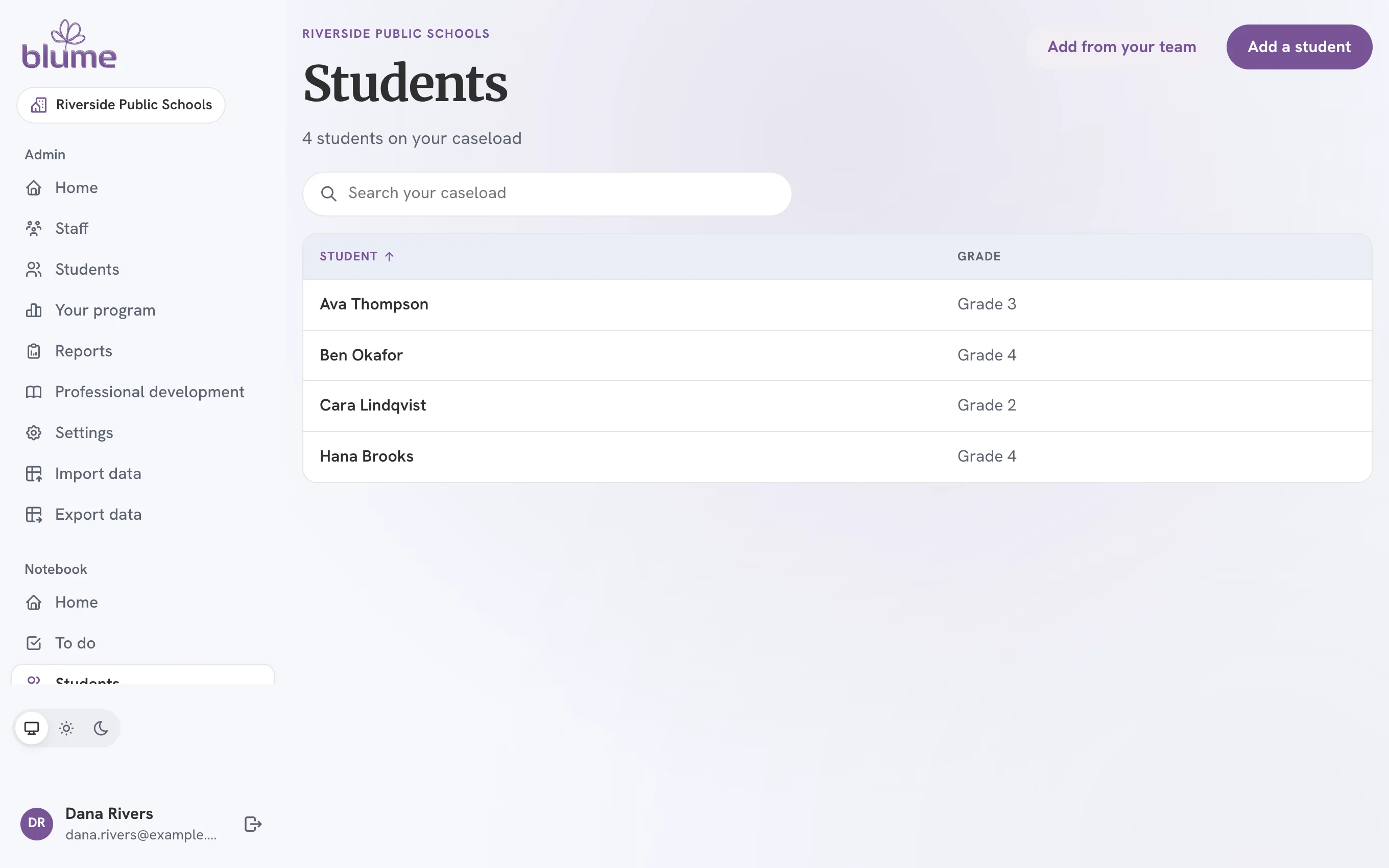
- Admin has Home, Staff, Students, Your program, Reports, Professional development and Settings. You invite people from Staff, and Blume opens on Admin’s Home.
What has not changed
- Your account. The same email and password, with no new code to verify your email.
- Your data. Every student, goal, observation and course you completed. Nothing was migrated, because it never moved.
- The address. www.blumemethod.app, in any browser.
- Blume Academy. Your courses, your progress through them and your certificates.
How to, with pictures
Short guides, each a few steps. Start anywhere.
-
 How to 1 Read
Sign in with the account you already have
Your email and password work as they did. Three more ways in are beside them.
-
 How to 2 Read
Choose your workspace, and switch between them
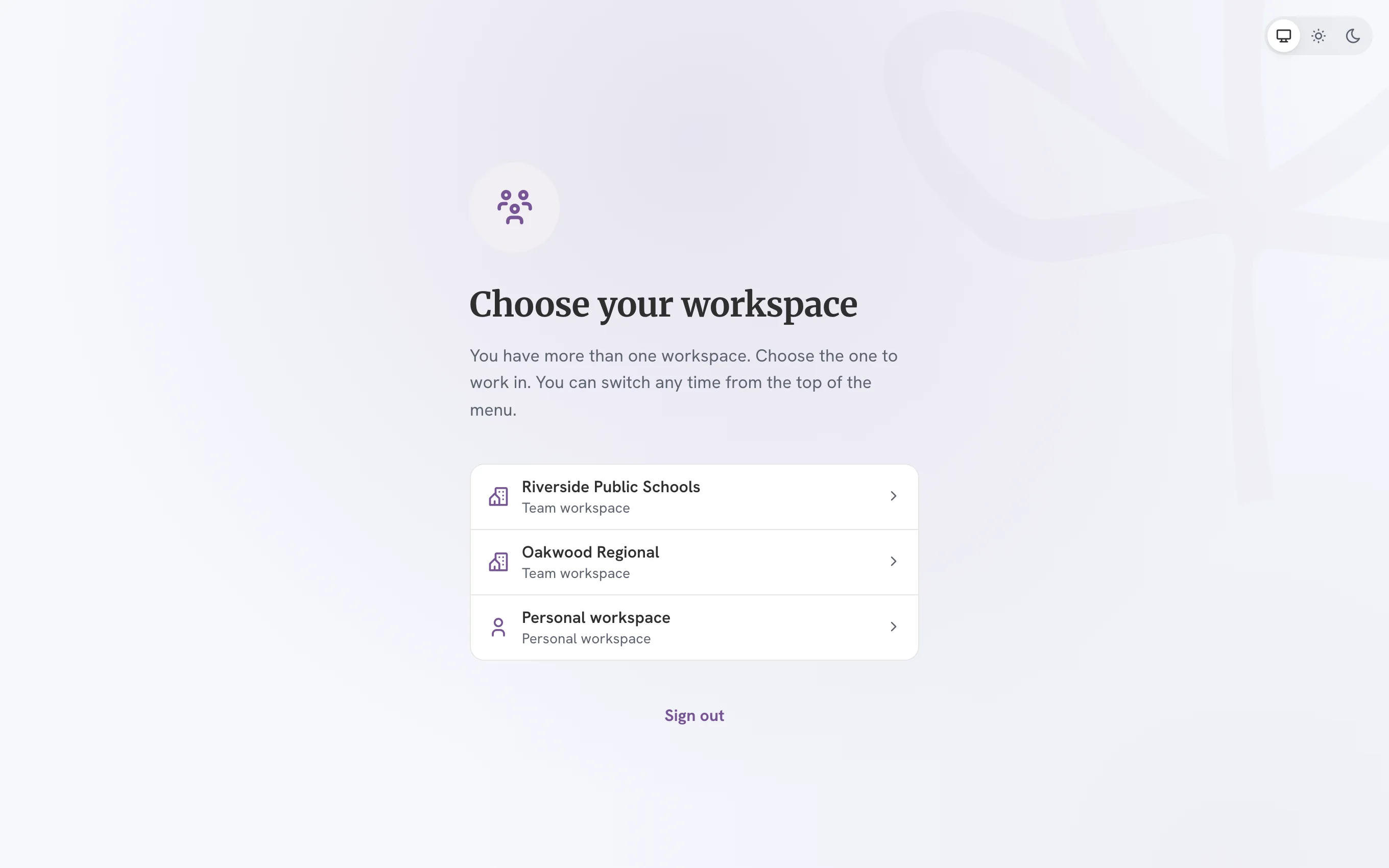
A team is now a team workspace. If you work with more than one, Blume asks which to open.
-
 How to 3 Read
Find your way around: the menu, Home and Add
One menu replaces My Blume’s tiles. Home replaces the Queue and the Calendar.
-
 How to 4 Read
Find your students, and add one
Your caseload is a table under Students. A student needs only a name and a grade.
-
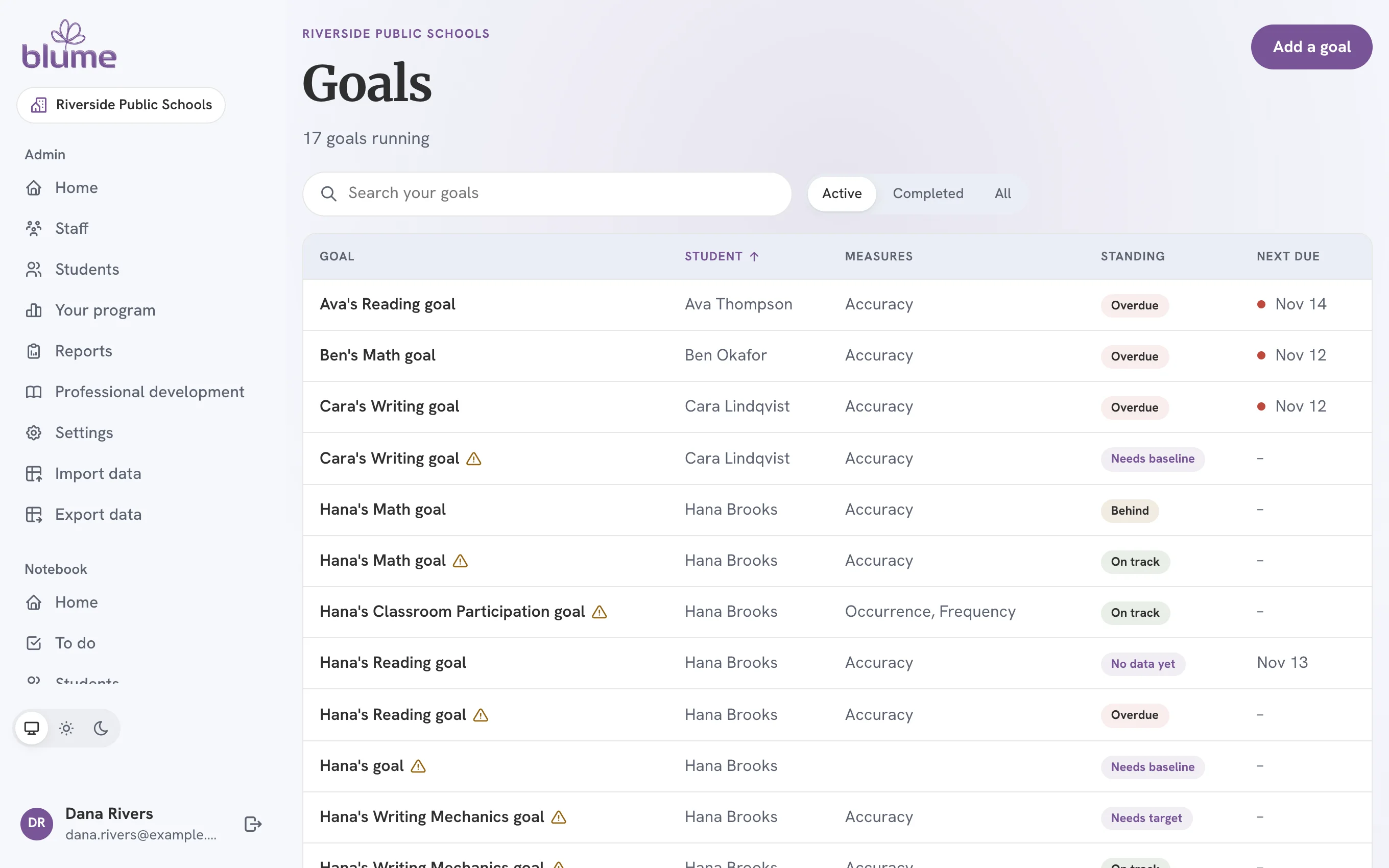 How to 5 Read
Pick up the goals you already had
Every goal is on Goals. Goals written in the earlier web app need their observations planned once.
-
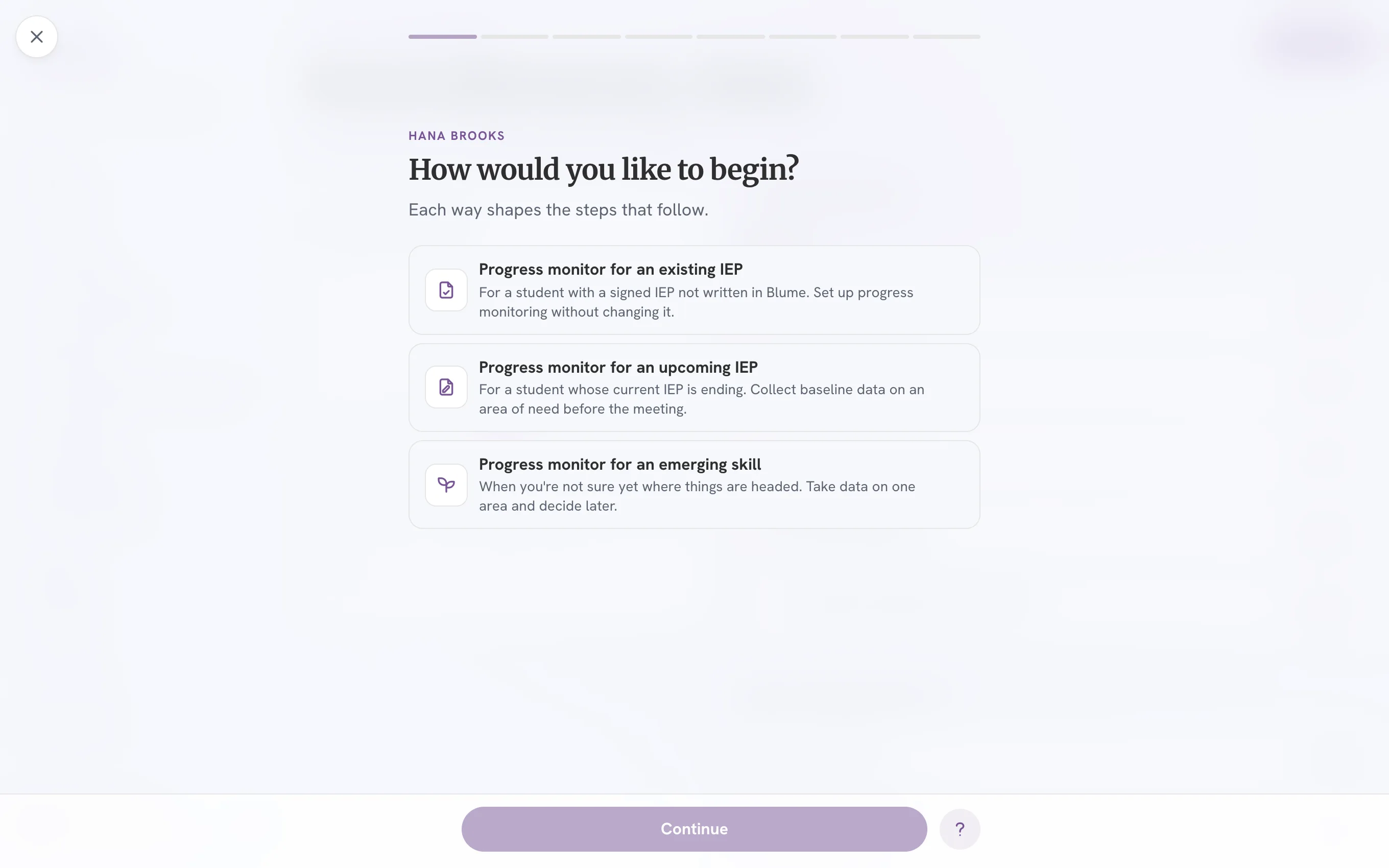 How to 6 Read
Write a new goal
The Goal Drafter and Create Goal are one run of steps now, begun one of three ways.
Words that changed
| Before | Now | What it means |
|---|---|---|
| Educator, User | Practitioner | Everyone on a team who works with students. |
| Administrator | Admin | An access level. Your role is now your job title, and governs nothing. |
| District, team | Team | A public school district or a charter school. |
| Caseload, Queue | Students, Home, To do | Your caseload is still your caseload; the pages have plainer names. |
| Collect Data | Take data | |
| Benchmarks | Milestones | |
| Help Center, Support Center | Help | A ticket is now a request. |
Blume is on your phone too
Blume Notebook, Blume Admin and Blume Academy are apps for iPhone and Android that use this same account. Whatever you do in one shows in the others as soon as it is saved.