

Moving to the new Blume
How to
How to do everything you did before
Each guide says how it worked before, then shows the steps now with a picture of the page.
In your Notebook
-
 How to 1 Read
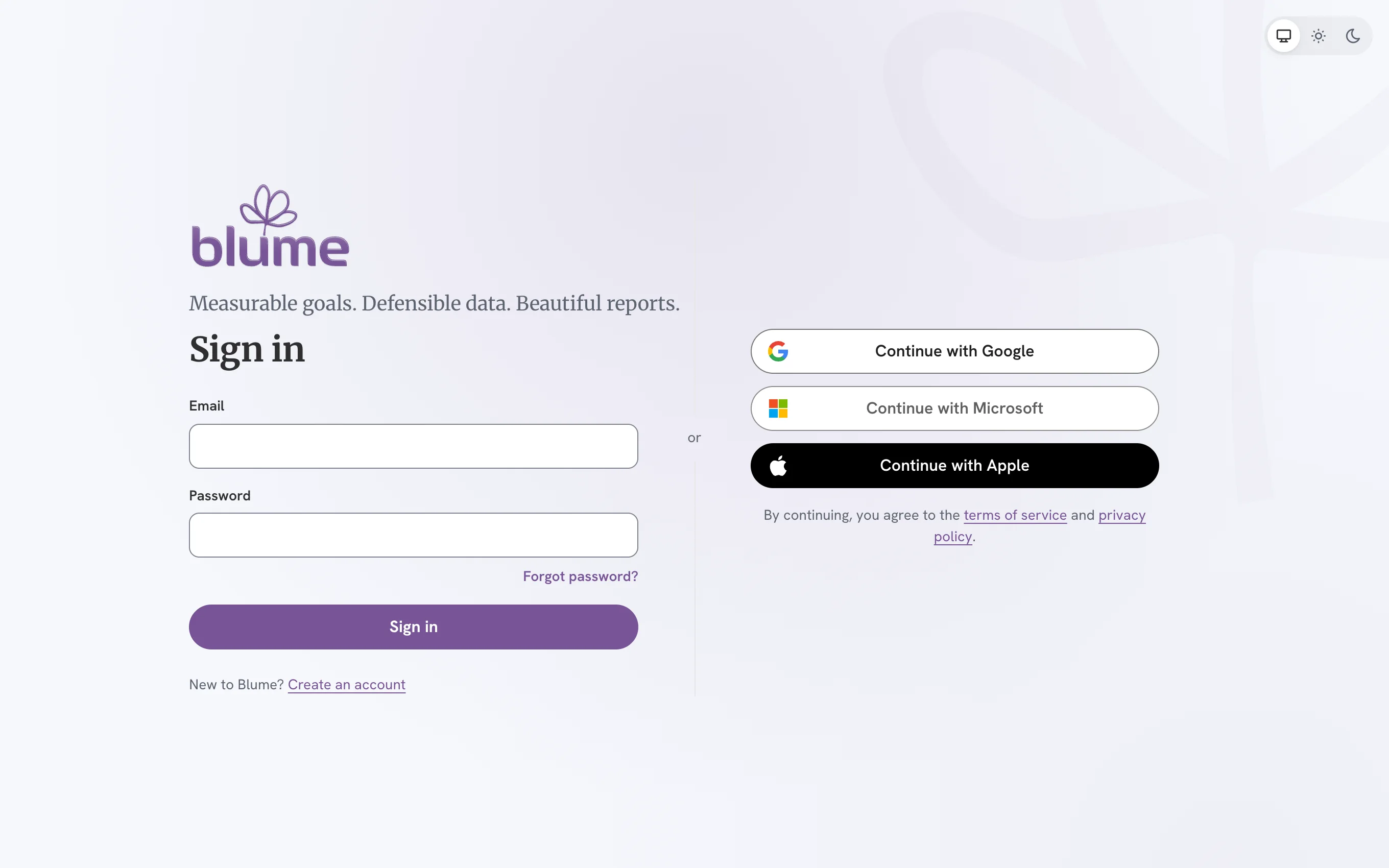
Sign in with the account you already have
Your email and password work as they did. Three more ways in are beside them.
-
 How to 2 Read
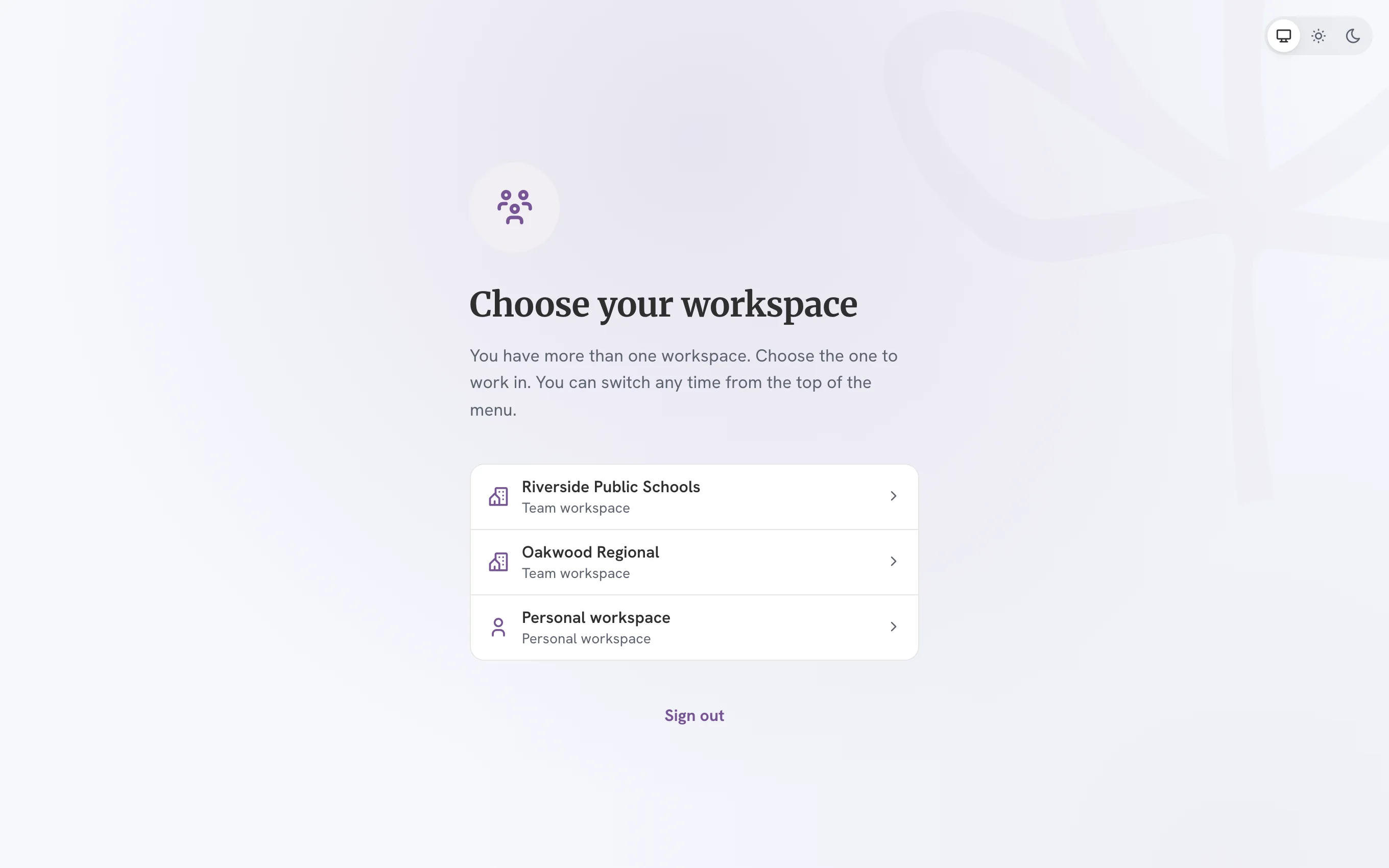
Choose your workspace, and switch between them
A team is now a team workspace. If you work with more than one, Blume asks which to open.
-
 How to 3 Read
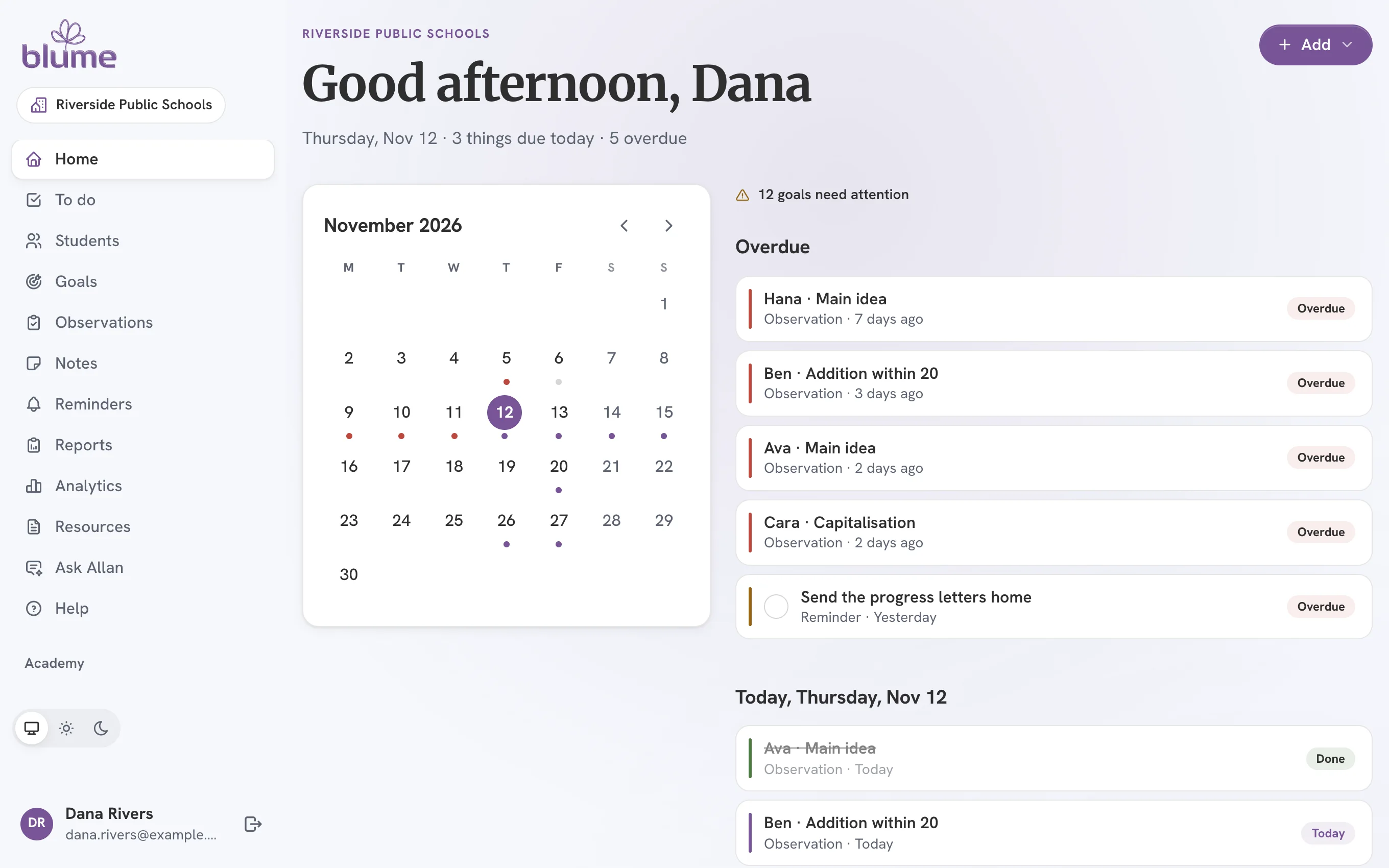
Find your way around: the menu, Home and Add
One menu replaces My Blume’s tiles. Home replaces the Queue and the Calendar.
-
 How to 4 Read
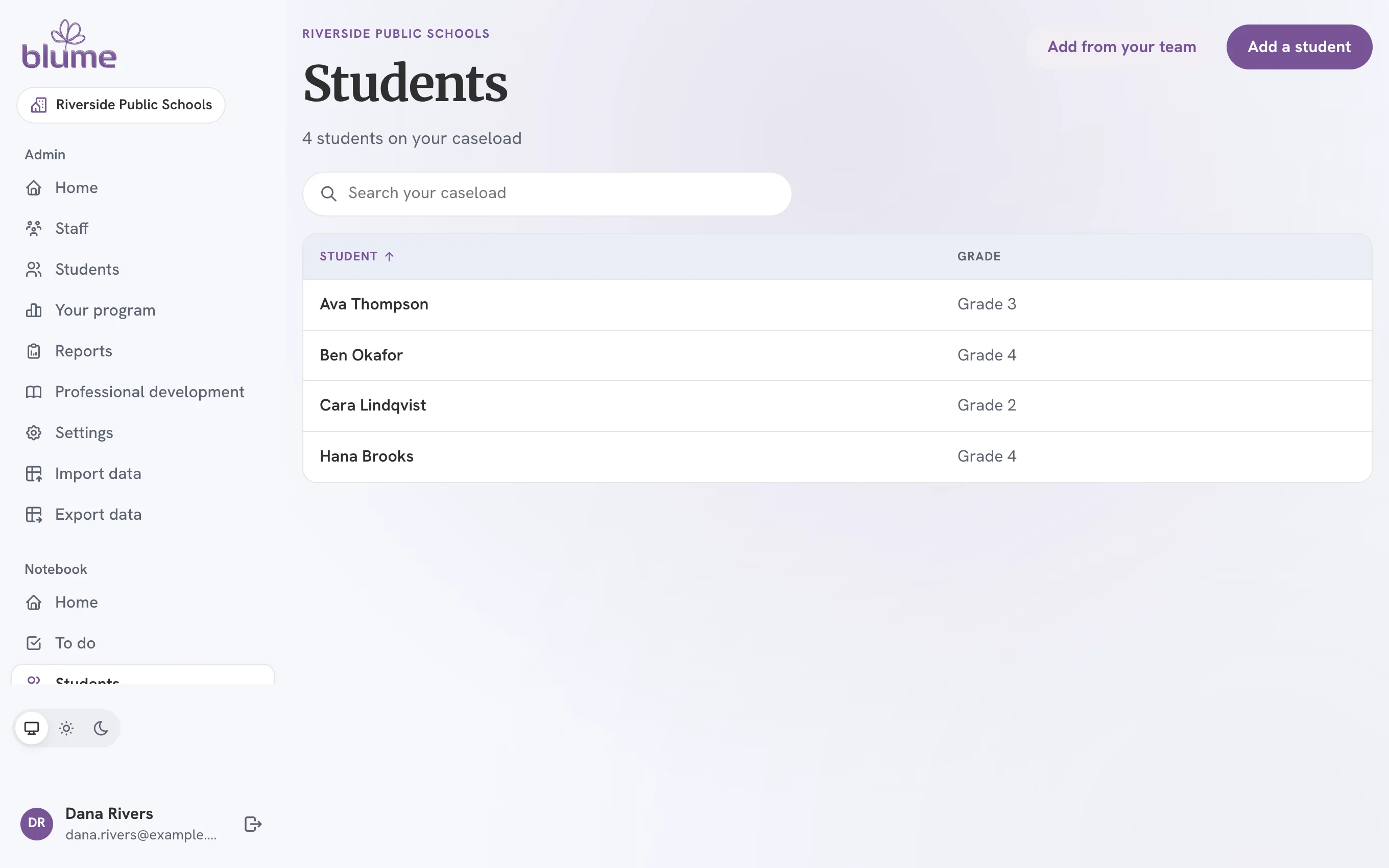
Find your students, and add one
Your caseload is a table under Students. A student needs only a name and a grade.
-
 How to 5 Read
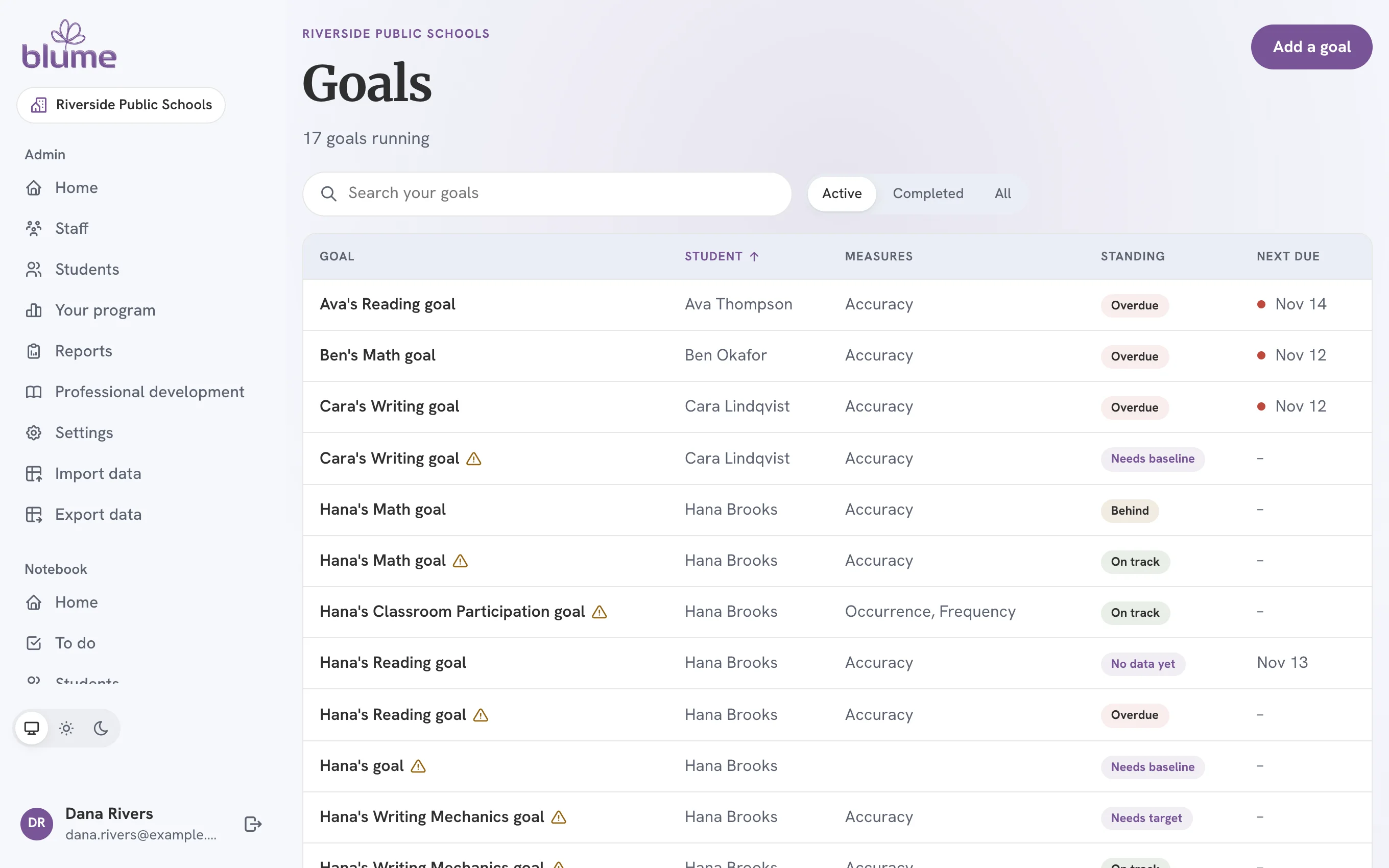
Pick up the goals you already had
Every goal is on Goals. Goals written in the earlier web app need their observations planned once.
-
 How to 6 Read
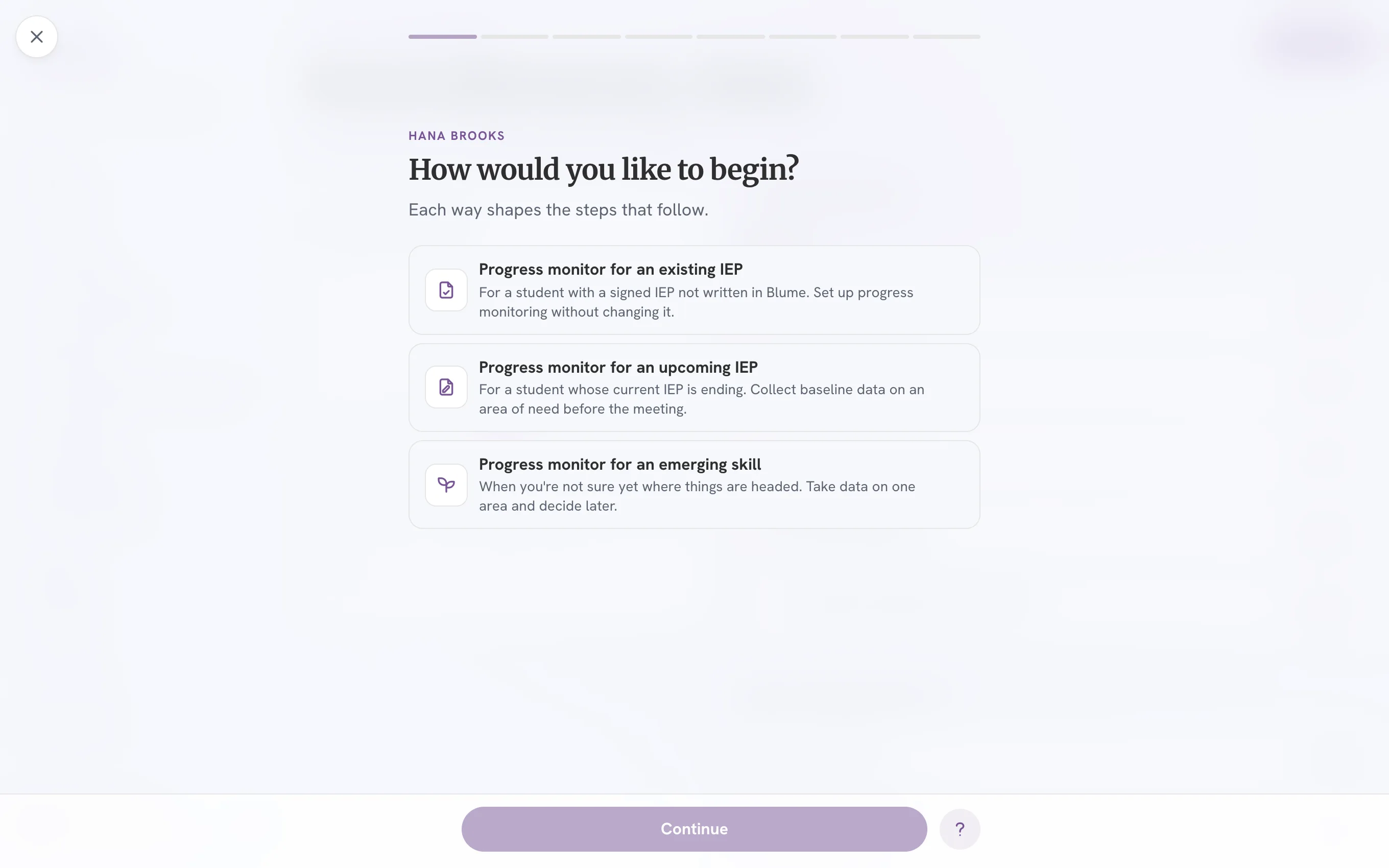
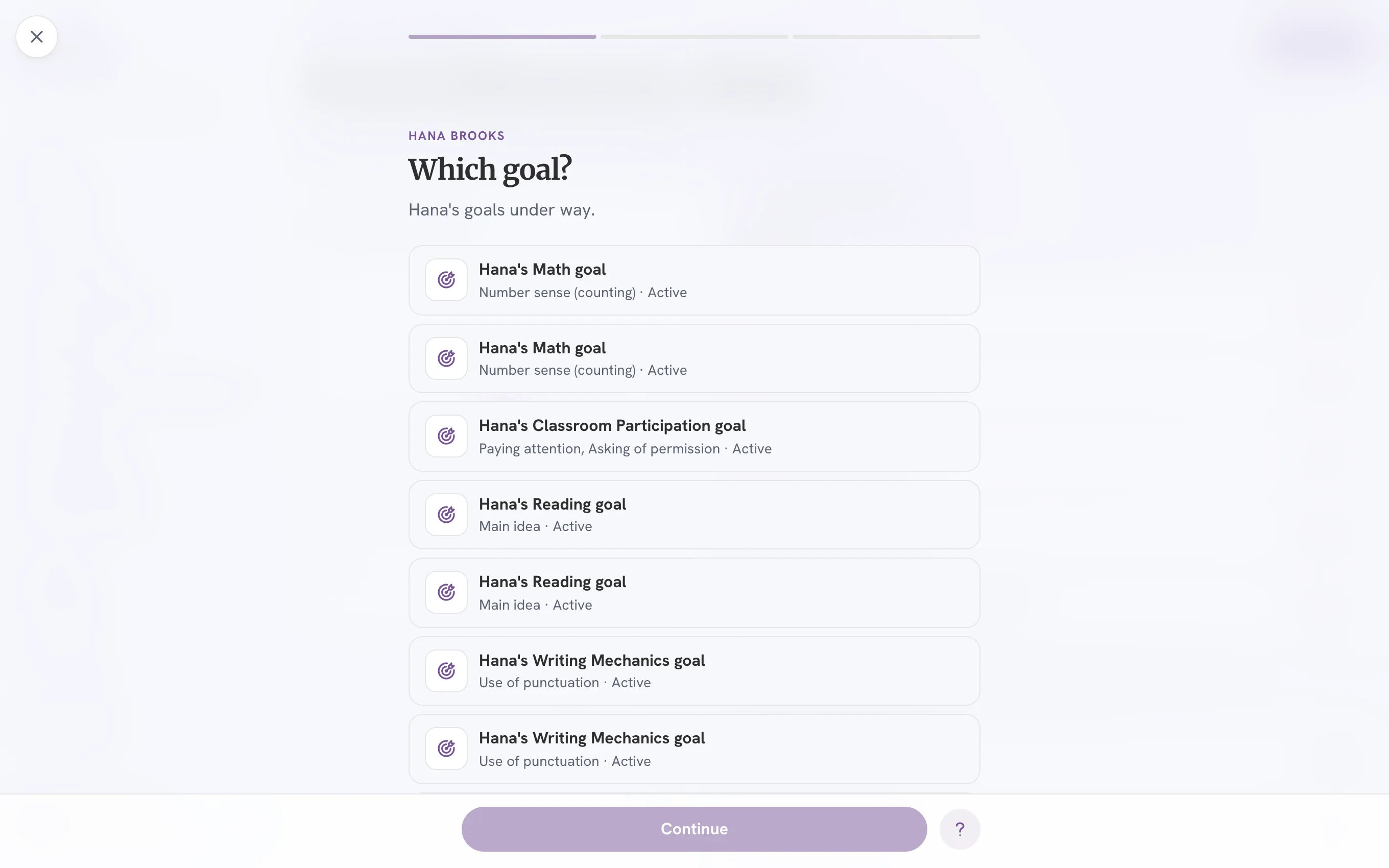
Write a new goal
The Goal Drafter and Create Goal are one run of steps now, begun one of three ways.
-
 How to 7 Read
Take data
Collect Data is now Take data, and you hold the button to save.
-
 How to 8 Read
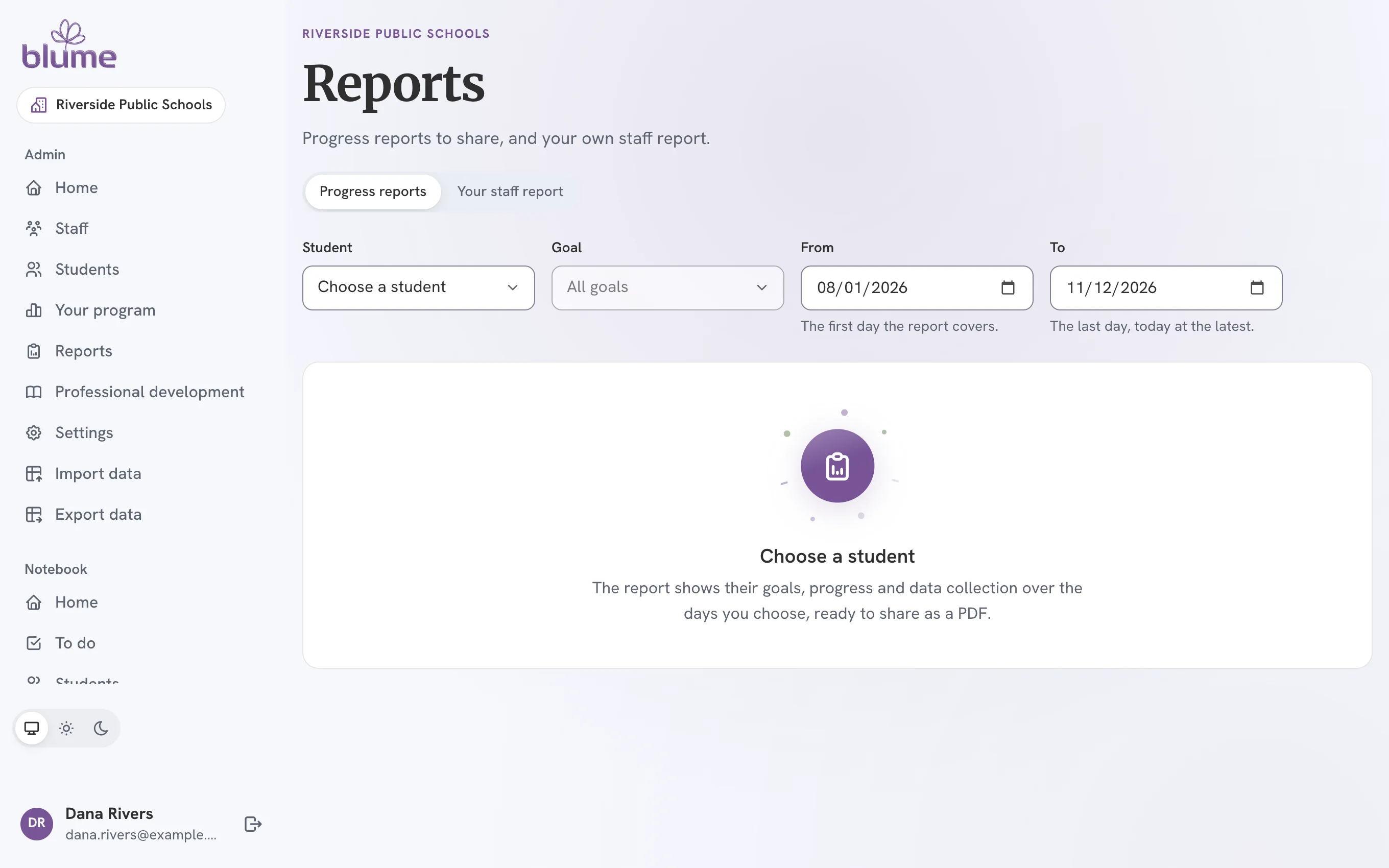
Create a progress report
Reports has its own page. The report shows as you choose, and downloads as a PDF.
-
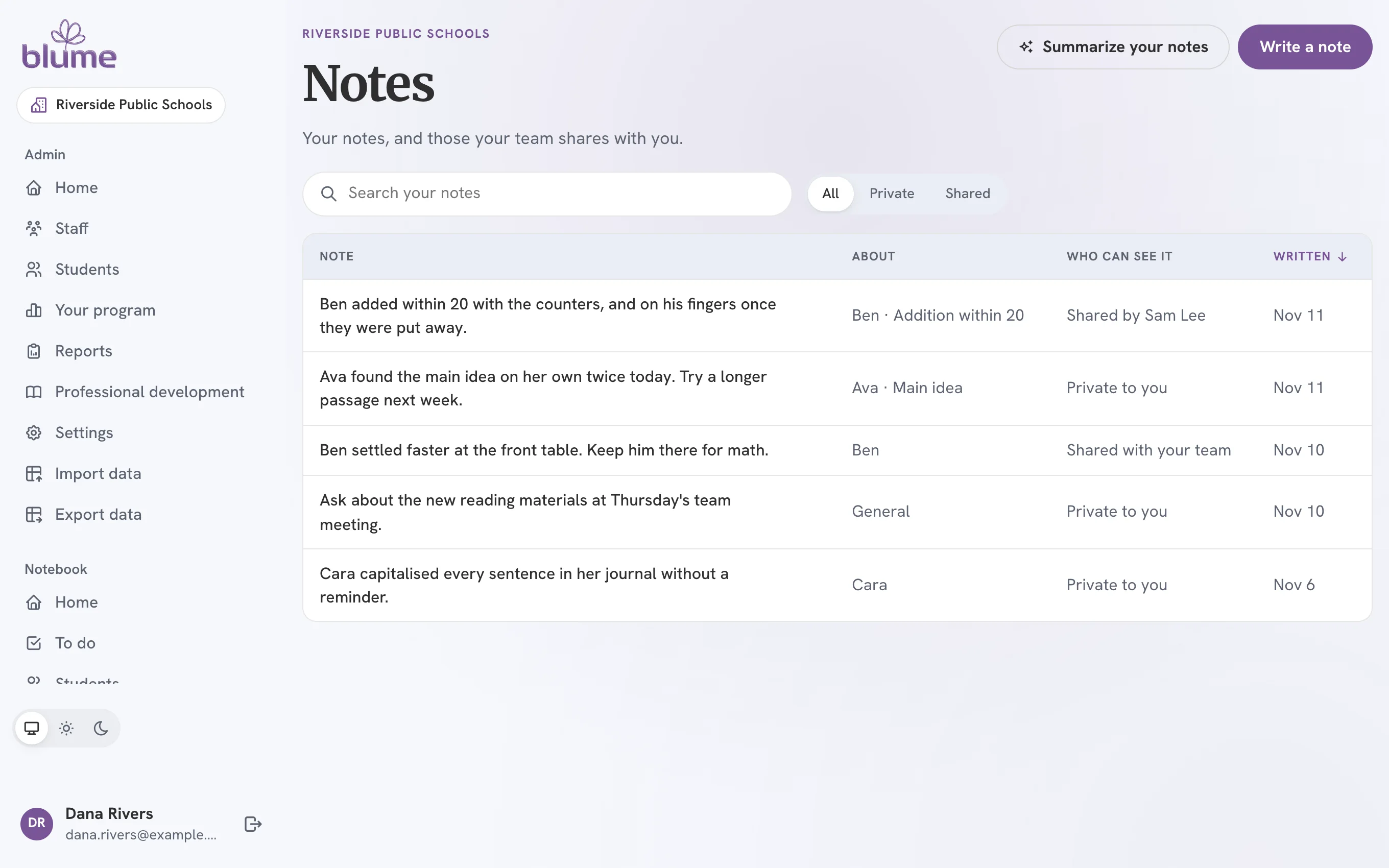 How to 9 Read
Write notes and set reminders
Both are new. Each is private to you unless you share it with your team.
-
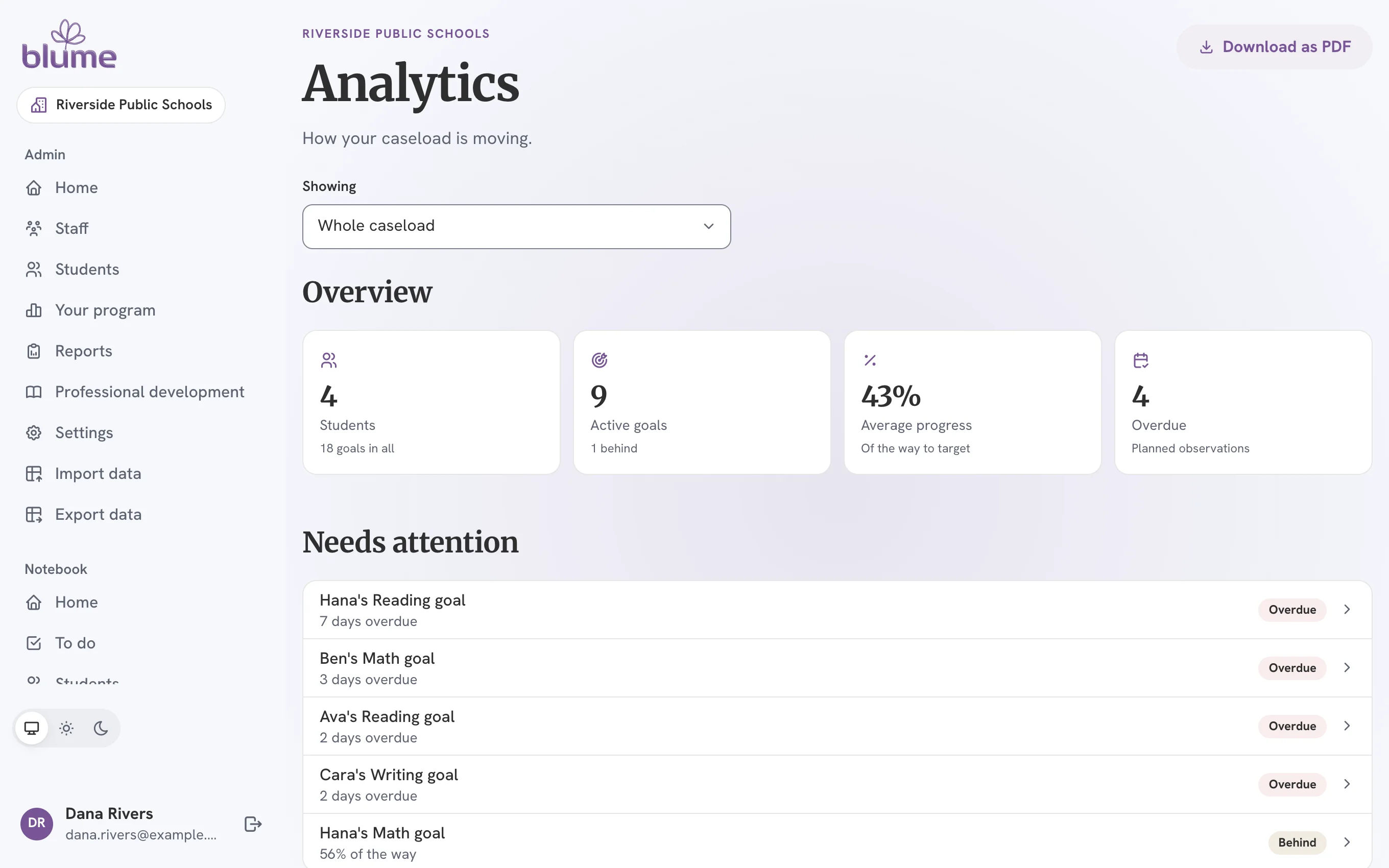 How to 10 Read
Read your analytics, and find Blume’s forms
Analytics is one page for your whole caseload or one student. Resources holds the forms and the data collection bank.
-
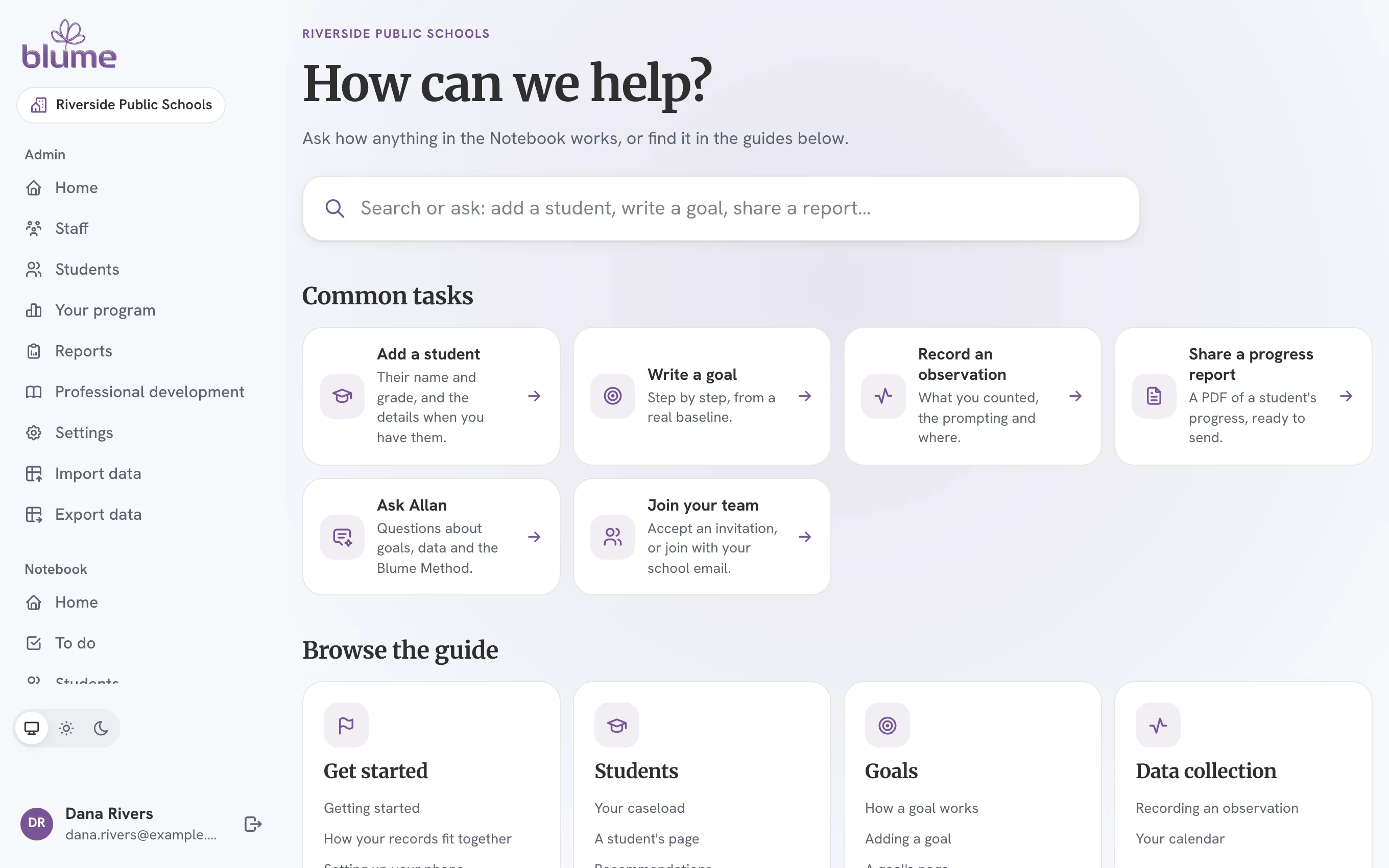 How to 11 Read
Get help, and ask Allan
The Help Center is Help. A ticket is a request. Ask Allan answers about the Blume Method.
-
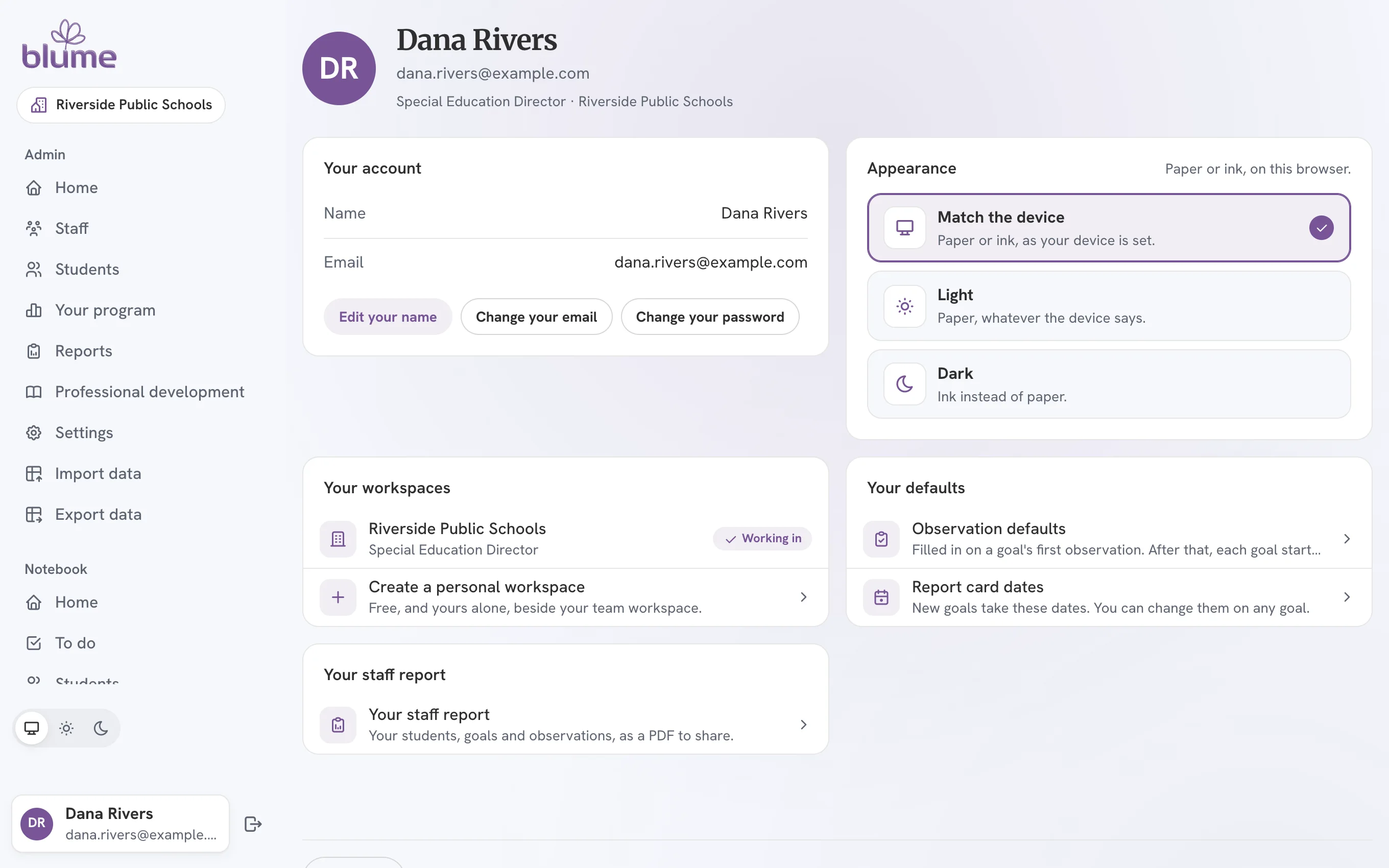 How to 12 Read
Your profile, password and appearance
Account Settings is Profile, under your name at the foot of the menu.
-
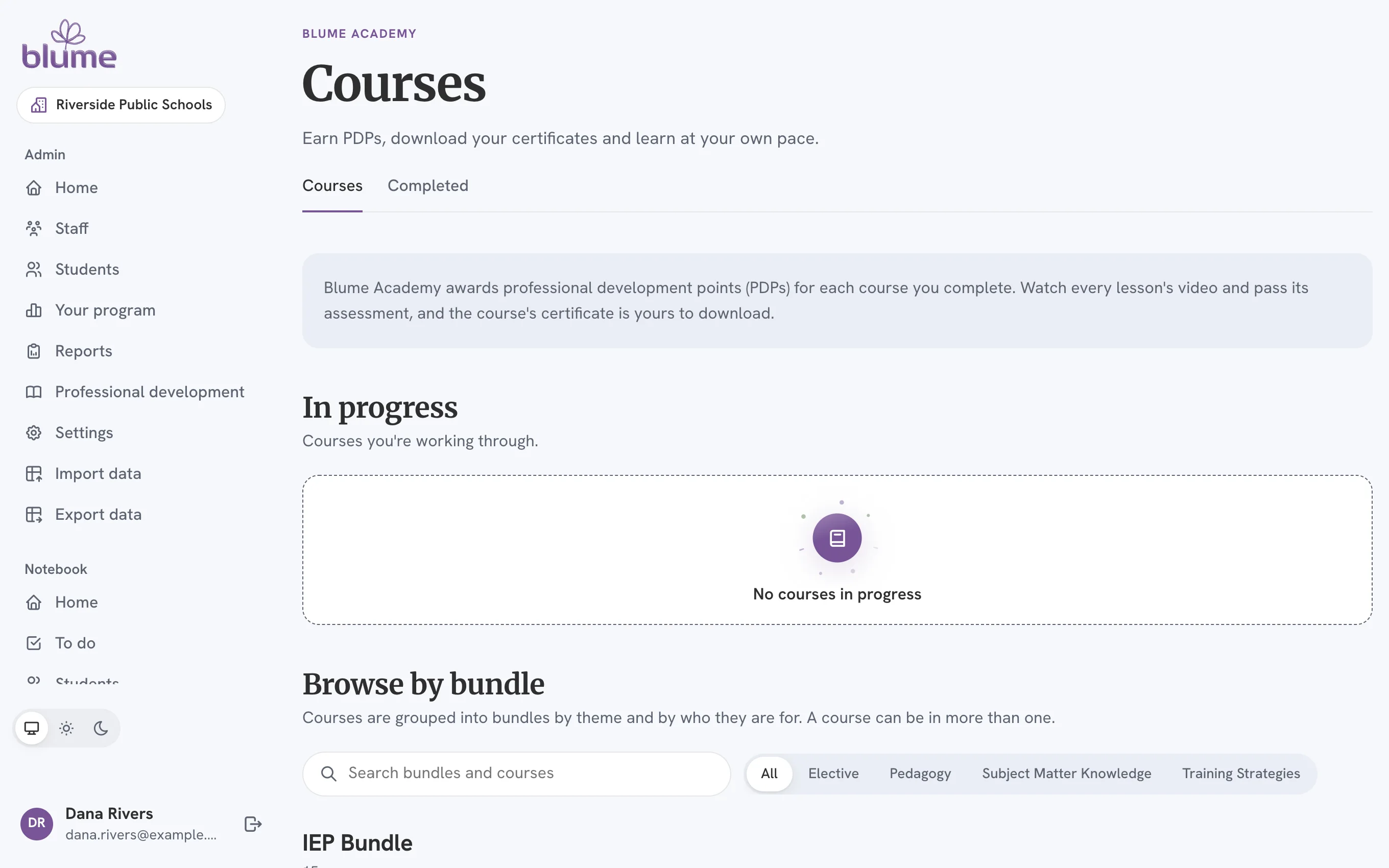 How to 13 Read
Carry on with Blume Academy
Your courses and your progress came with you. Academy is in the same menu.
-
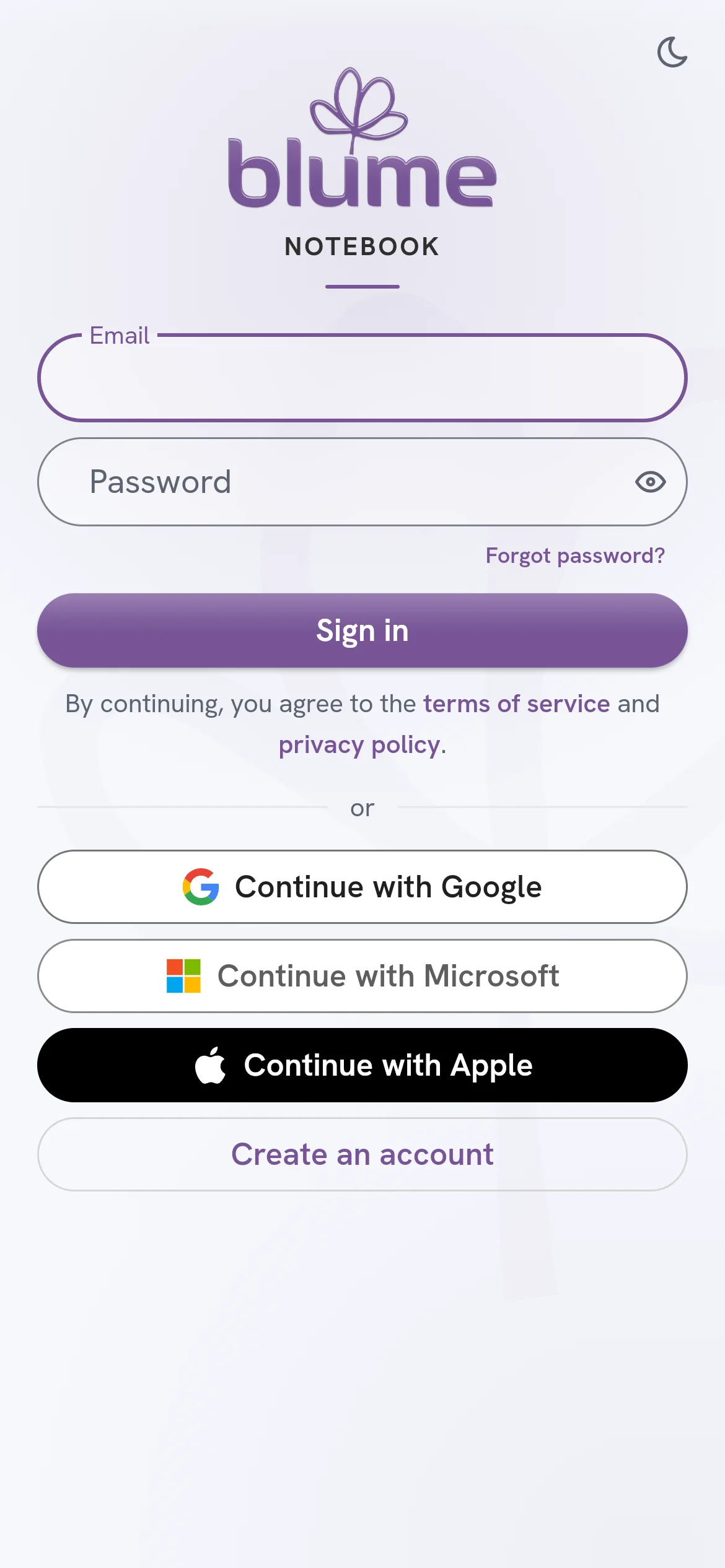 How to 14 Read
Use Blume Notebook on your phone
The same account, the same caseload and the same goals, in an app made for the classroom.
Running your team
-
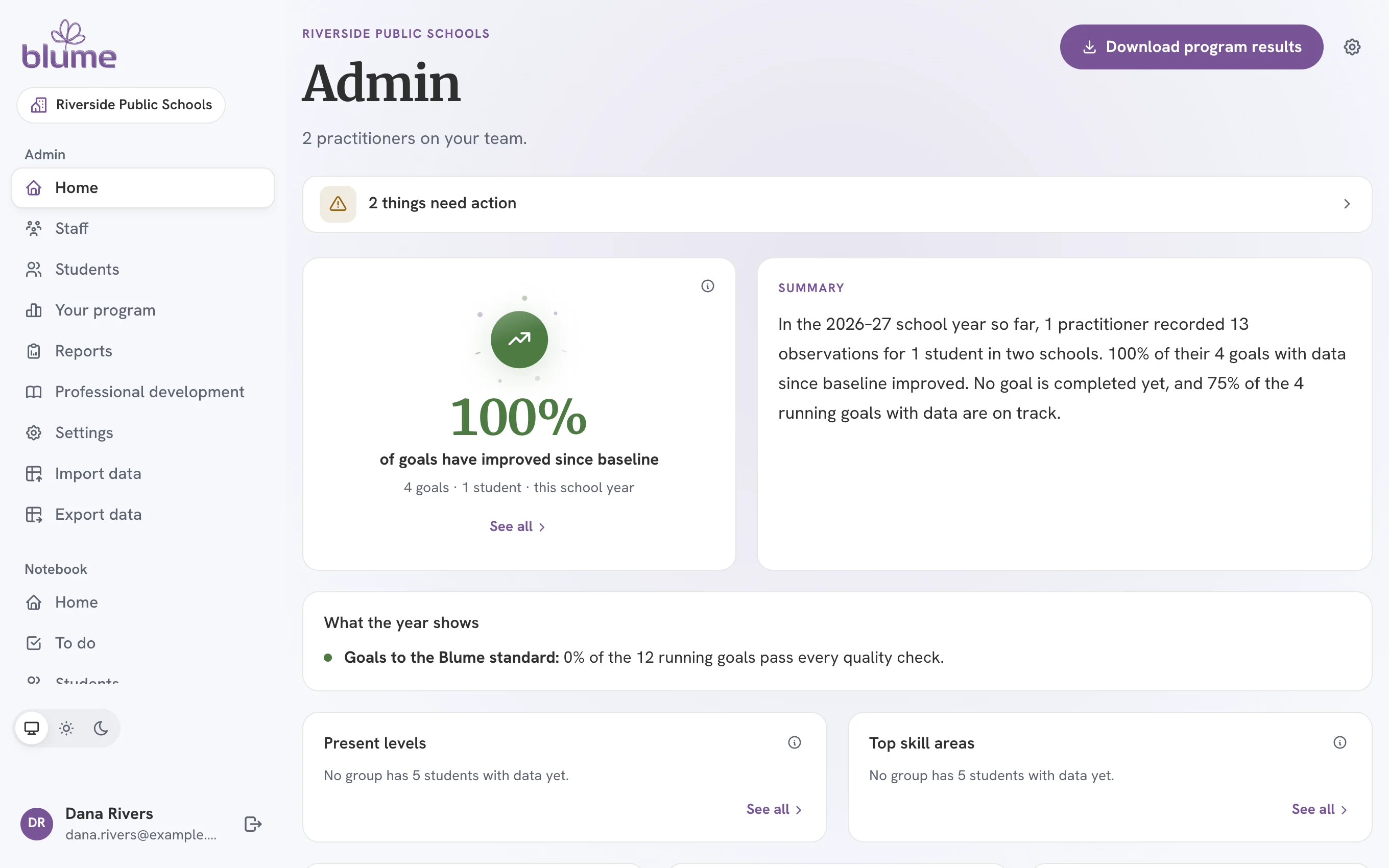 For your team’s admins Read
Run your team: Admin’s Home and Your program
The Admin Portal is the Admin group at the top of the menu, and Blume opens on it.
-
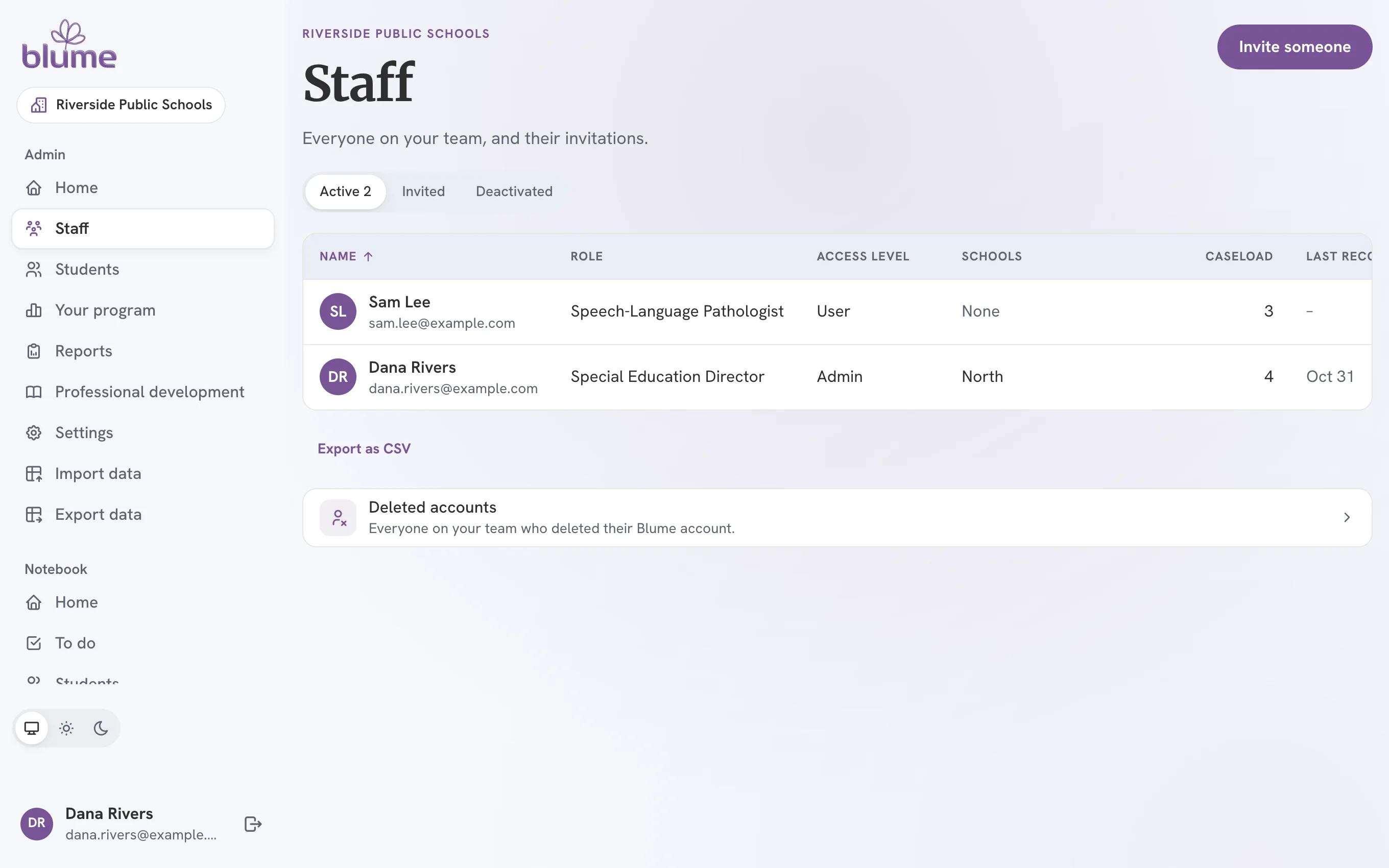 For your team’s admins Read
Invite and look after your staff
Users is Staff. Add user is Invite someone.
-
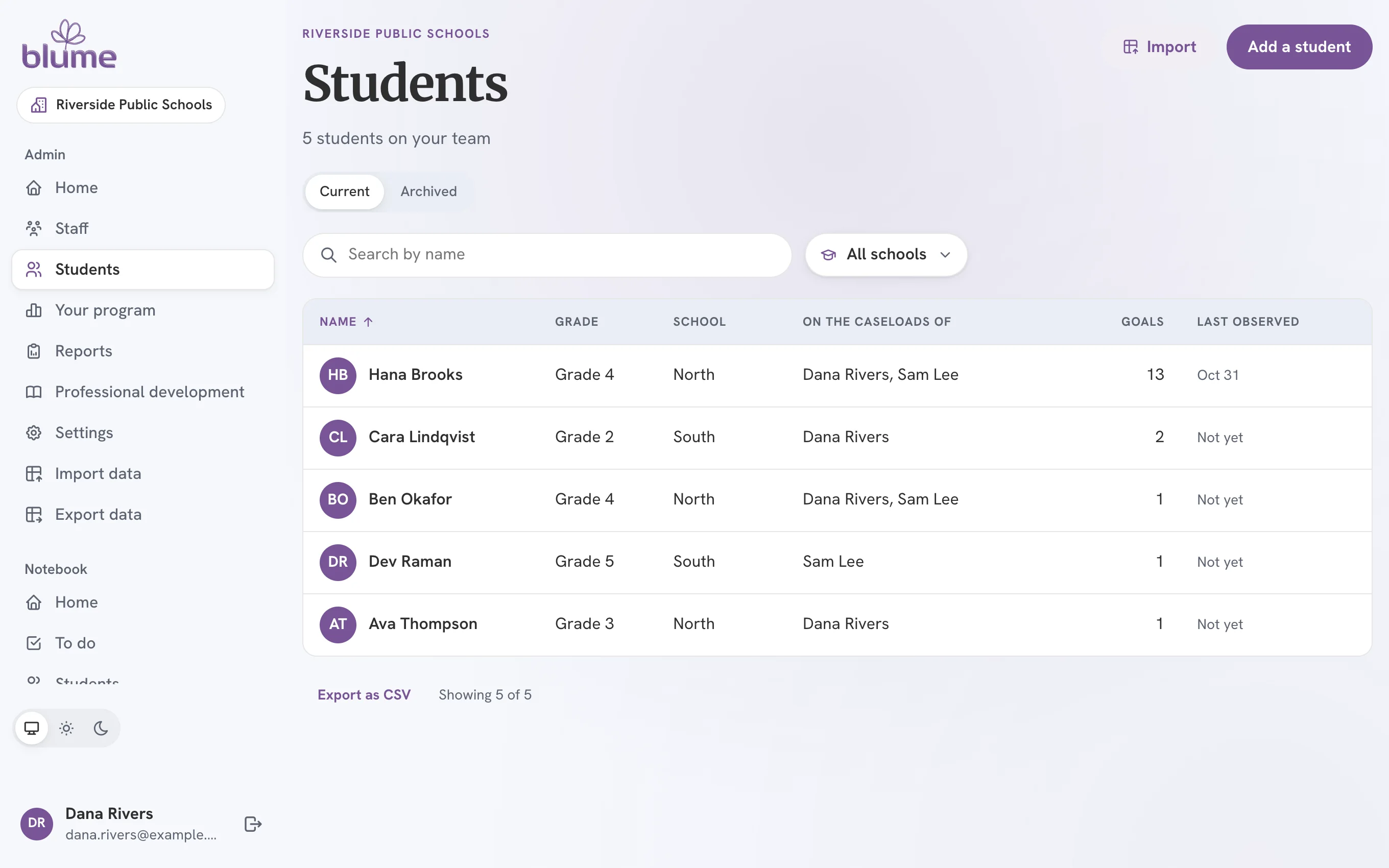 For your team’s admins Read
Look after your team’s students
Every student on your team, whose caseloads they are on, and what was recorded for them.
-
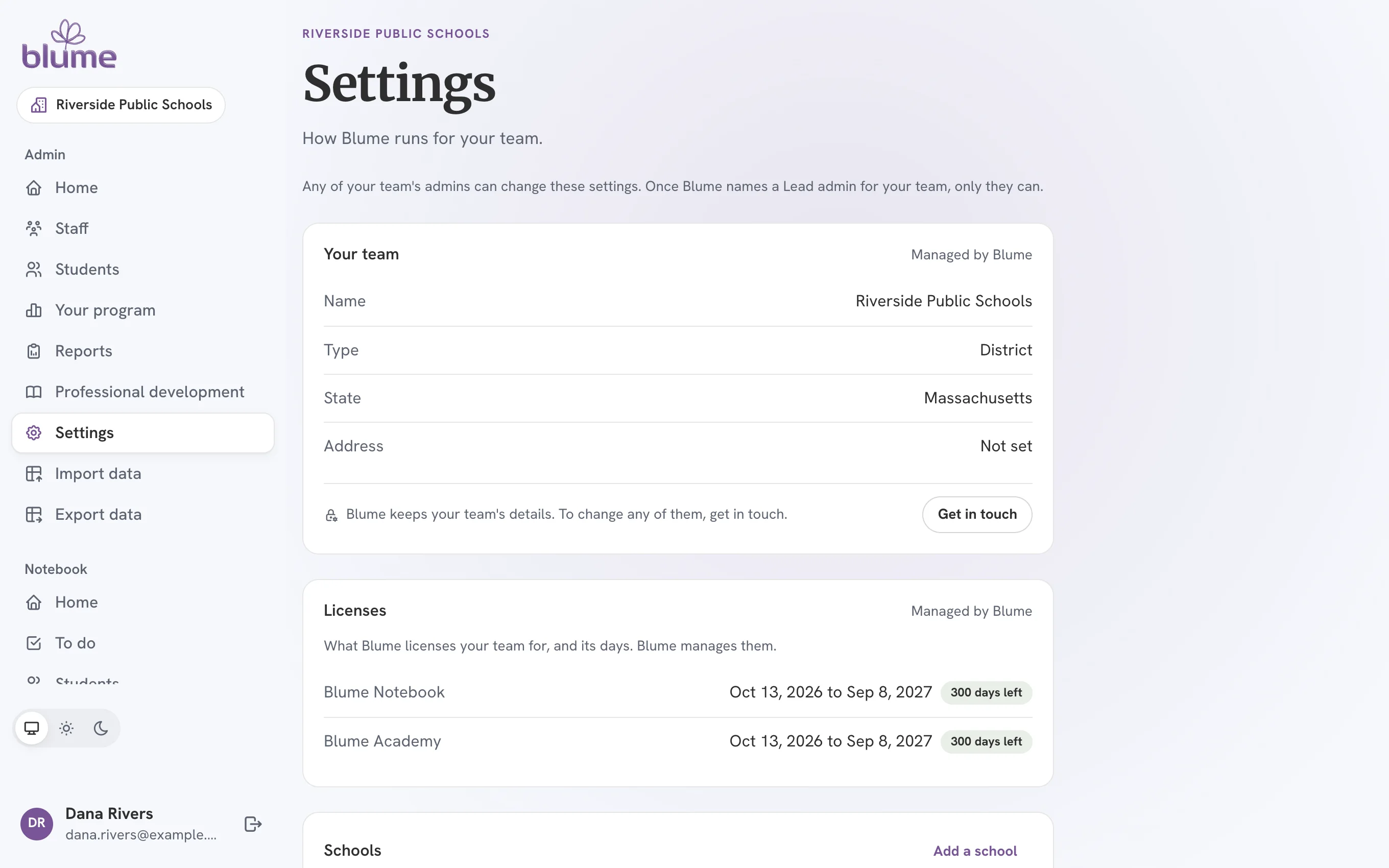 For your team’s admins Read
Settings, reports and your team’s data
Settings is one page. Every list exports, and your team’s whole data imports and exports from the Admin menu.